
Keyframes & auto motion
Make it
move.
Animate supported controls with keyframes or generate a starting rhythm.
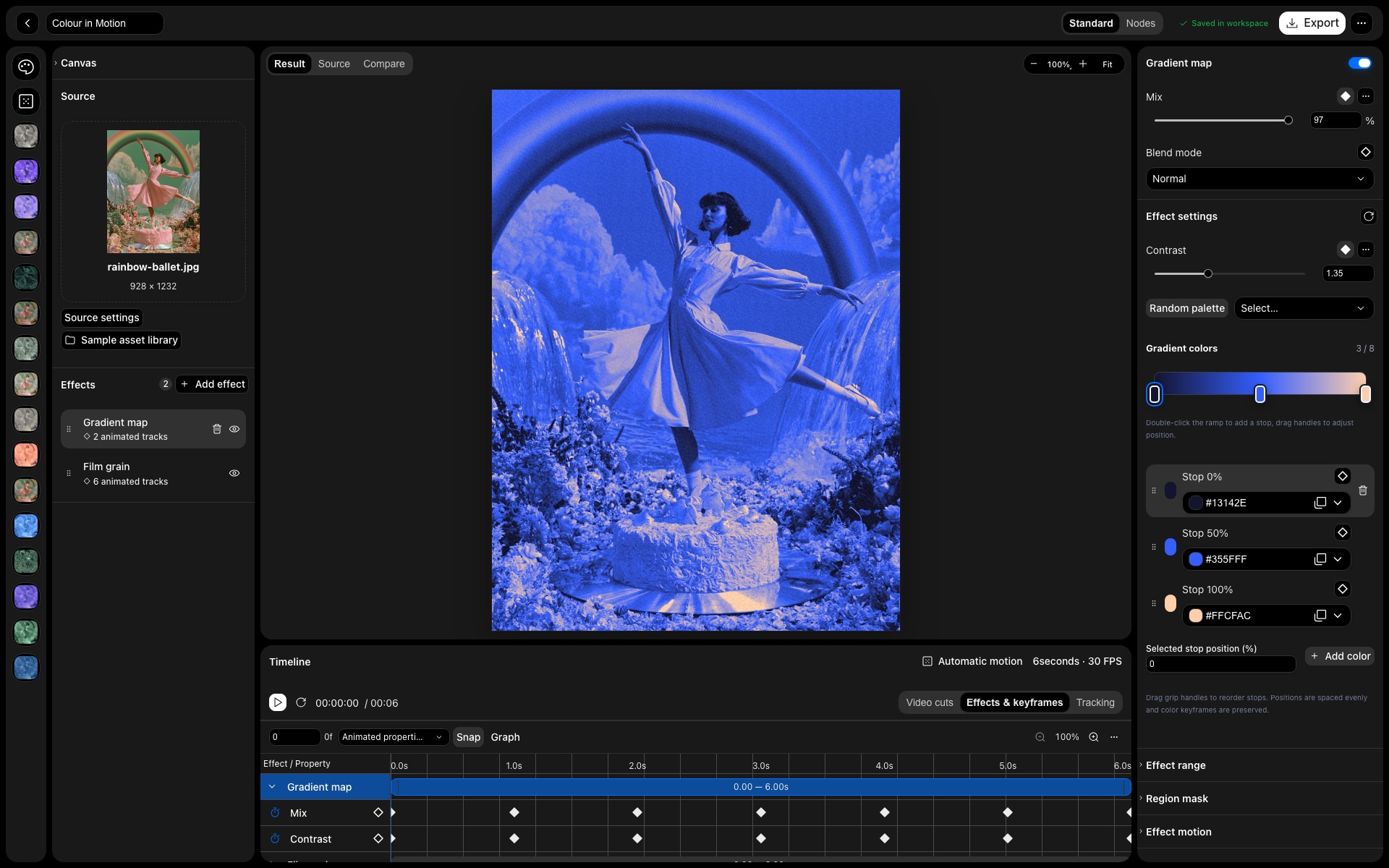
Keyframes
Animate supported numeric controls with precise timeline keys.
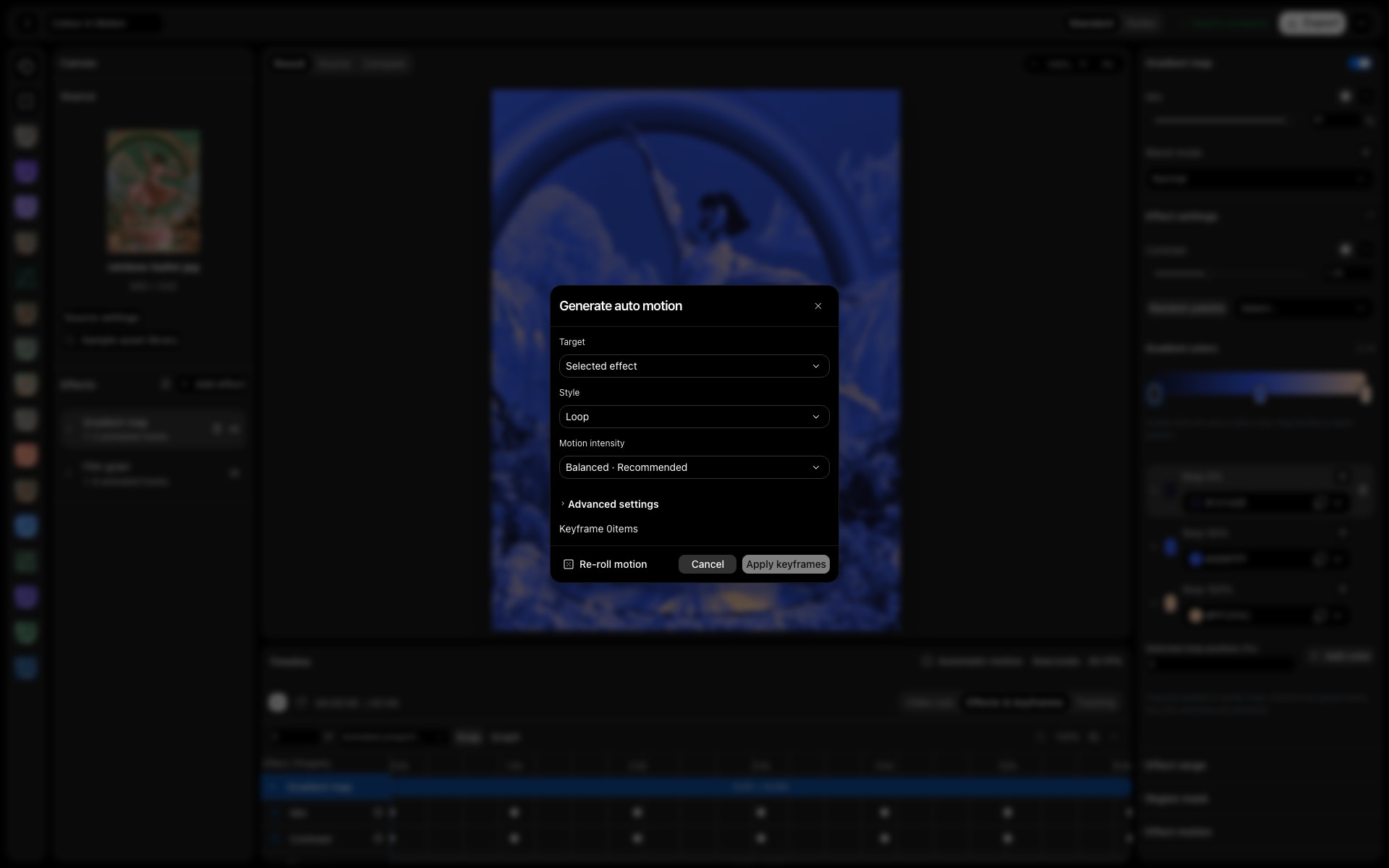
Auto motion
Breathe, drift, pulse, loop.
Seeded
Repeat motion with the same source, seed and settings.
In practice
A still image.
A little life.
Animate the placement of a source and supported numeric effect controls. Build a deliberate movement with keyframes, or generate a starting rhythm with Auto Motion and refine the keys it creates.
The workflow
Three steps.
Your direction.
- 01
Choose what moves
Select source position, scale or rotation, or a supported numeric control on an effect. Start with one clear change.
- 02
Set a rhythm
Add keys at specific times or try Breathe, Drift, Pulse, Flicker, Scan, Loop or Ping-pong. Adjust intensity and change the seed for a different variation.
- 03
Refine the result
Review the generated keys in the timeline. Set the project duration in Timeline settings and choose a start and end time when exporting motion.
Made for
Put it
to work.
Animated posters
Give a static composition a slow drift or a gentle change in effect intensity.
Short social loops
Explore a repeating rhythm from one image, then check the first and last frames before exporting.
A family of variations
Keep the same source, effect values, seed and settings to reproduce parameter motion, or re-roll for a different rhythm.
Good to know